
Overview
When opening eCTD v4.0, the MainWindow for v4.0 will launch.
At the top of the MainWindow, there are multiple tabs that you can switch between to view information.
Each MainWindow also has one HelperWindow, which supports the browsing of the MainWindow.
The MainWindow is used to view an Application. Each MainWindow is linked to one Application.
Screen Layout

Information
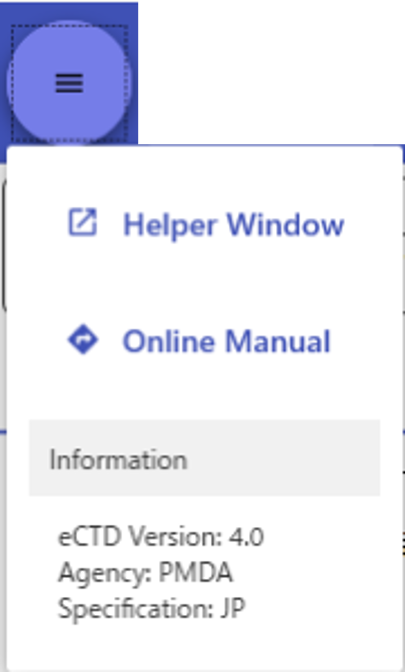
Click the menu button in the upper-left corner of the window to check basic information such as eCTD version and Agency.
The Specification indicates which type of eCTD is currently being viewed, as determined by Power Viewer.
Helper Window
CTD Tree

Directory
References the document’s reference attribute and displays the expected directory structure.
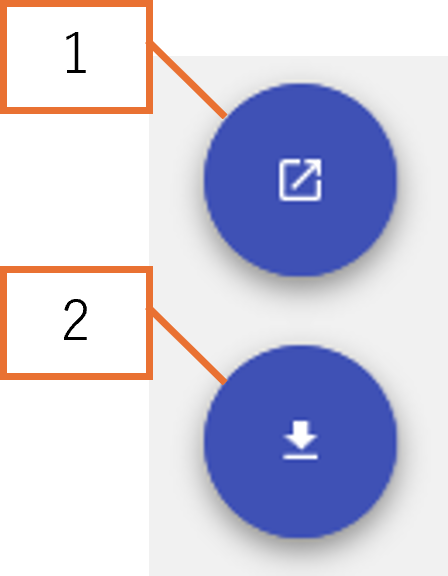
Click Button 1 to open the folder/file of the selected Node in the default browser.
Click Button 2 to download the folder/file of the selected Node.
Depending on the eCTD Storage where the document file is located, these operations may not be supported.
Application
Displays Application information.
The displayed information may vary depending on the eCTD specification.
Submission
Displays Submission information.
The displayed information may vary depending on the eCTD specification.
XML
Displays submissionunit.xml as is.
Datasets
Displays information about files under m5/datasets.
If a folder Node is selected, the information of ContextOfUse that references files under that folder is displayed in a TSV-like format.
This tab is only displayed when the Specification is JP.