
Overview
The Initial Settings window lets you specify the path to the group policy file.
The Environment Builder window allows you to generate a group policy file and an album database file.
Screen Layout
Initial Settings Window
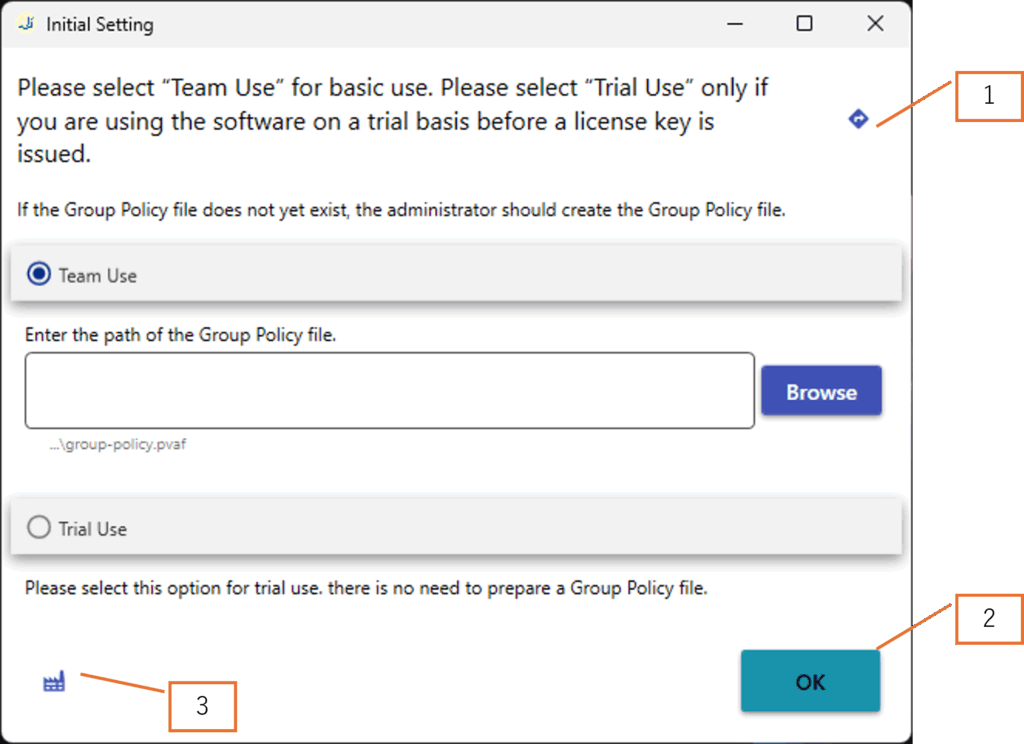
| No. | Description |
|---|---|
| 1 | Open the User Guide |
| 2 | Set the path to the group policy file |
| 3 | Open the Environment Builder window |
Environment Builder Window
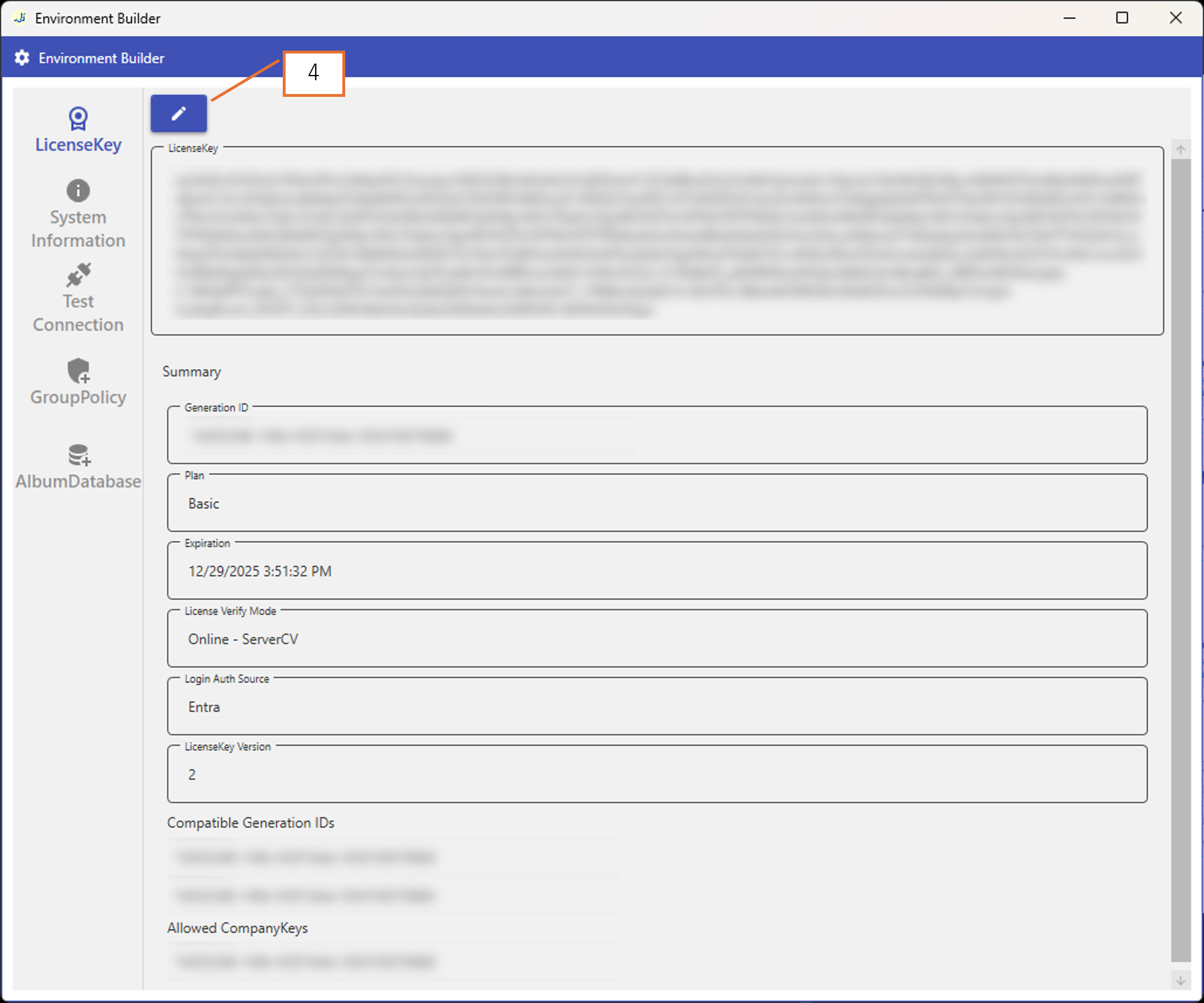
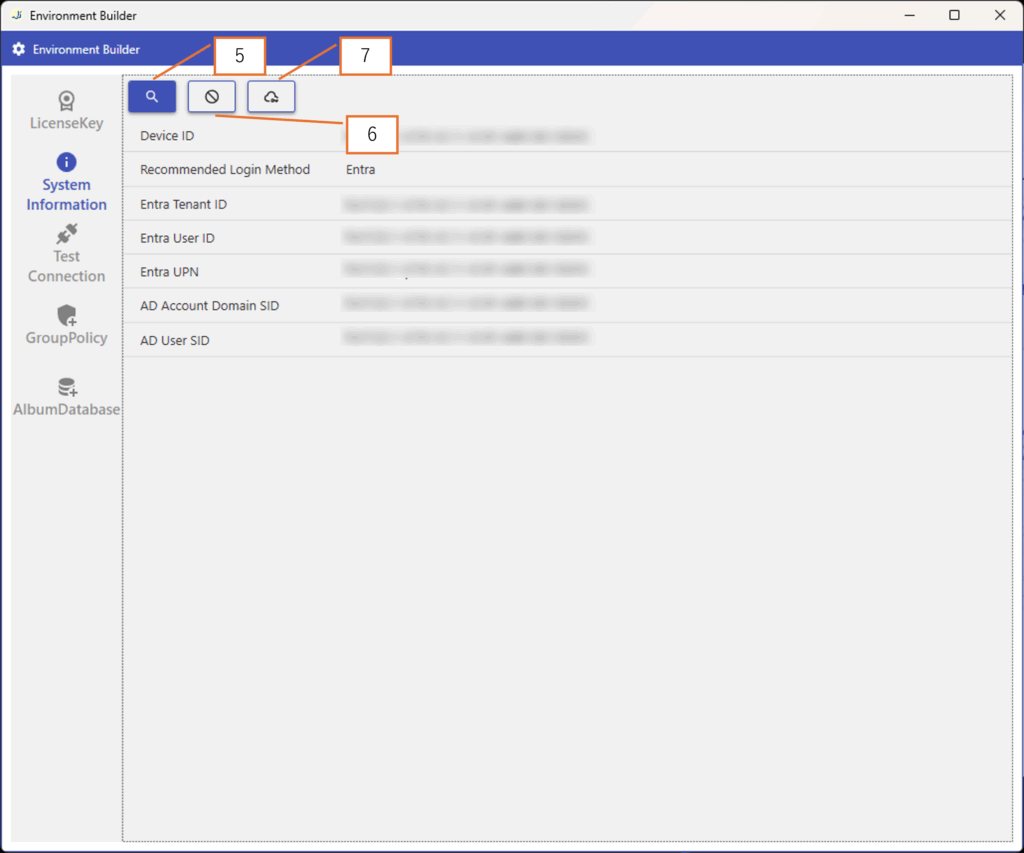
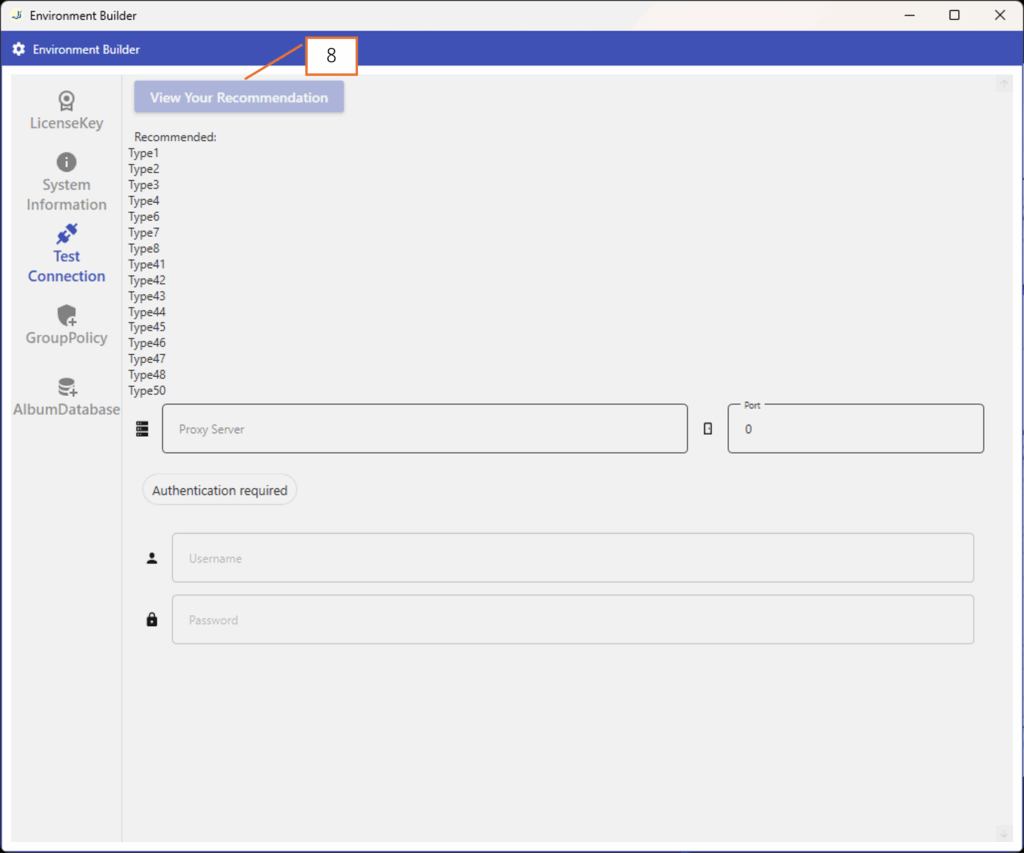
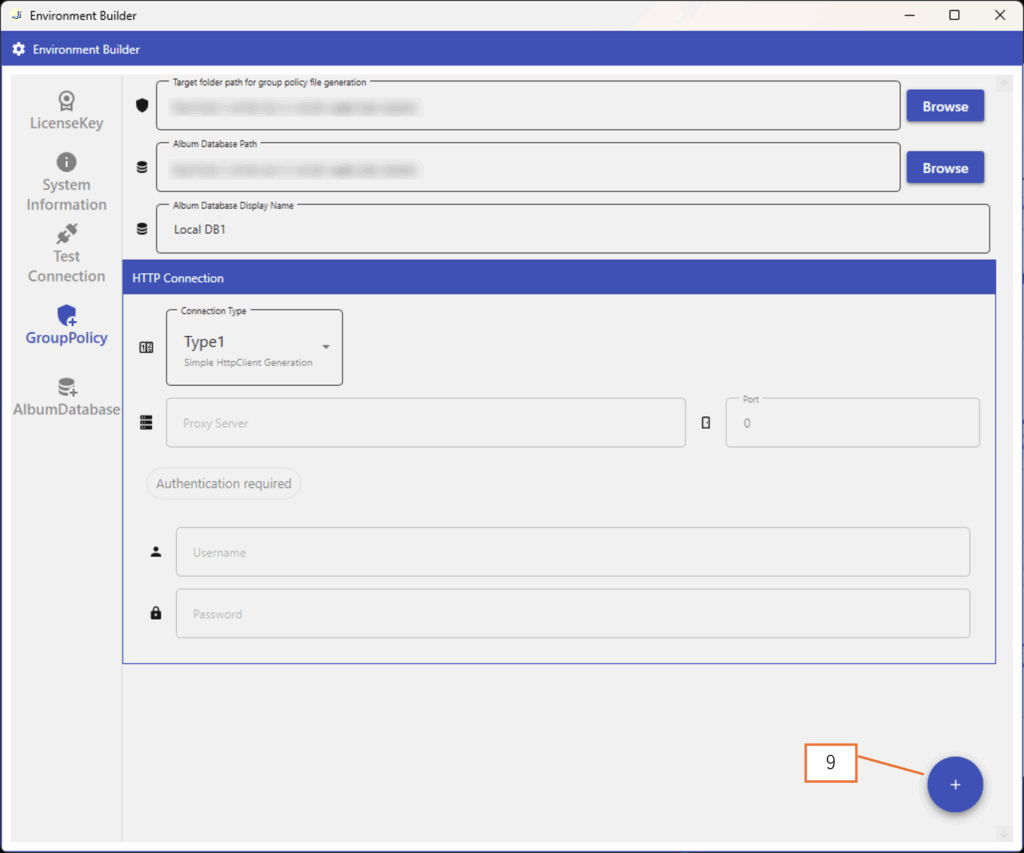
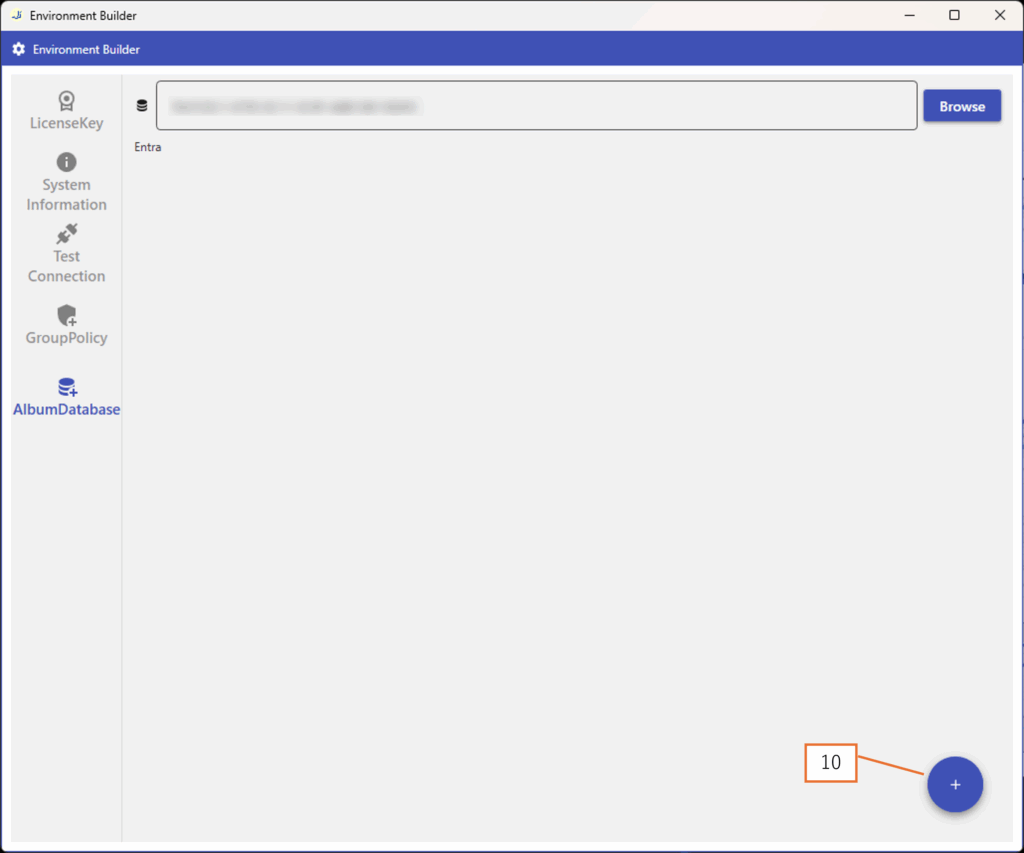
| No. | Description |
|---|---|
| 4 | Enter the license key |
| 5 | Inspect system environment |
| 6 | Cancel Entra sign-in while environment inspection is running |
| 7 | Open the evaluation license request page |
| 8 | Check recommended HTTP connection |
| 9 | Generate the group policy file |
| 10 | Generate the album database file |
Main Operations
Set the path to the group policy file
Power Viewer starts according to the specified group policy file. Once you set the group policy file path, you do not need to specify it again unless you remove the setting.
Enter the license key
By entering a valid license key, you can view the information contained in the key.
| Item | Description |
|---|---|
| Generation ID | ID of the license key |
| Plan | Subscription plan |
| Expiration | Expiration date |
| License Verify Mode | License verification method |
| Login Auth Source | Login method |
| Version | License key version |
| Compatible Generation ID | IDs of compatible previous license keys |
| Allowed CompanyKey | Company key |
Inspect system environment
This collects information about your environment. It is primarily used before issuing a license key to determine what information the key should include.
Clicking the button opens a browser window prompting for Entra sign-in. This sign-in is optional. If you do not want to use Entra sign-in, press the cancel button in Power Viewer (not the browser). If Entra sign-in is available, it is recommended.
| Item | Description |
|---|---|
| Device ID | ID of the running device |
| Recommended Login Method | The login method recommended based on the inspection |
| Entra Tenant ID | CompanyKey when using Entra sign-in |
| Entra User ID | UserKey when using Entra sign-in |
| Entra UPN | Entra user principal name (not used by Power Viewer) |
| AD Account Domain SID | CompanyKey when using AD login |
| AD User SID | UserKey when using AD login |
Open the evaluation license request page
Clicking the button opens the page below in a browser. If you have already completed the system environment inspection, the company key and device ID for your environment will be automatically filled in. You can also open the page directly from this site, but opening it via the app is the easiest method.
Check recommended HTTP connection
Run test connections to determine the connection type recommended for your environment. Testing can take some time, so please wait. When finished, the screen will list the connection types that succeeded.
Generate the group policy file
Specify the following information and the output location to generate the group policy file. These values will be saved in the group policy file.
- Path to the album database
- Album database name
- HTTP connection settings
Because specifying an album database is required when generating the group policy file, you must generate the album database first if it does not yet exist.
Generate the album database
Generates the album database.
If the license key specified on Screen 2-1 indicates Entra/AD as the login method, you can generate the database by simply clicking the button. For Cred, enter the ID/password and then click the button.
The created user will be registered as an Administrator.
Login Methods
Power Viewer supports three authentication methods for sign-in. The login method is determined by the license key. Please choose which method to use before issuing the license key.
Entra Login (Recommended)
Login using Microsoft Entra ID.
- For organizations using Microsoft 365 / Office 365 / Azure
- Supports single sign-on (SSO)
- Allows use of organization security policies (MFA, conditional access, etc.)
Active Directory (AD) Login
Login using your on-premises Active Directory (AD).
- Used on devices joined to the corporate network (domain)
- Uses Windows sign-in credentials
- Authentication integrated with corporate AD
Cred Login
Login using Power Viewer’s own ID / password system.
If a password is disclosed, impersonation becomes easy; for security and operational reasons, this method is not recommended.
- For environments where neither Entra nor AD is available
- Users manage their own passwords
License Key Types
There are four types of license keys. Choose the license key that fits your organization’s policy. If unsure, use the Server CV version.
#1 Online – ServerCV
License key for online login. On login, the Power Office server automatically retrieves and applies the latest CV.
Users are restricted from changing the applied CV locally. Applied CV management is handled by Power Office.
#2 Online – Hybrid
License key for online login. On login, the Power Office server automatically retrieves and applies the latest CV.
In addition, users can change the applied CV locally. This key offers the most flexible operation.
#3 Online – LocalCV
License key for online login. The latest CV is not automatically retrieved or applied at login.
Users must manage the CV themselves.
#4 Offline
License key for offline login. No internet connection is required to sign in.
Use this for offline environments or when online connections are restricted by security policy.
However, the following limitations apply.
- The latest CV is not automatically retrieved or applied at login.
- Cloud storage integration is not available.
Post-installation Flow
General Users
Enter it on Screen 1 of the Initial Settings window.
Administrator
The installer/administrator for Power Viewer performs the following steps. Only one person within the organization needs to perform these steps.
STEP1 Request an evaluation license key
If you do not want to use Entra sign-in, click the Cancel button.
Fill in the required information based on the inspection results and submit the form.
The evaluation license key will be sent to the email address provided in the request form.
Issuance may take several days.
STEP2 Generate album database & group policy file
If a valid license key is entered, you can proceed.
Specify the folder path where the album database will be created, then generate it.
Determine the connection type suitable for your environment.
Group policy is the set of shared settings used when using Power Viewer.
Specify the output location, album database path, album database name, and HTTP connection settings, then generate the file.
STEP3 Sign in
Entra Admin Consent
Ask your IT administrator to open the admin consent link below, sign in, and grant organization-wide app approval.