Overview
Manage eCTD Storage settings.
To add a SubmissionUnit, you must first register an eCTD Storage configuration that contains that SubmissionUnit.
For example, if you want to add a SubmissionUnit stored in Box, first register a Box eCTD Storage configuration.
Note that some eCTD Storage configurations—such as Local Directory—are pre-registered by default.
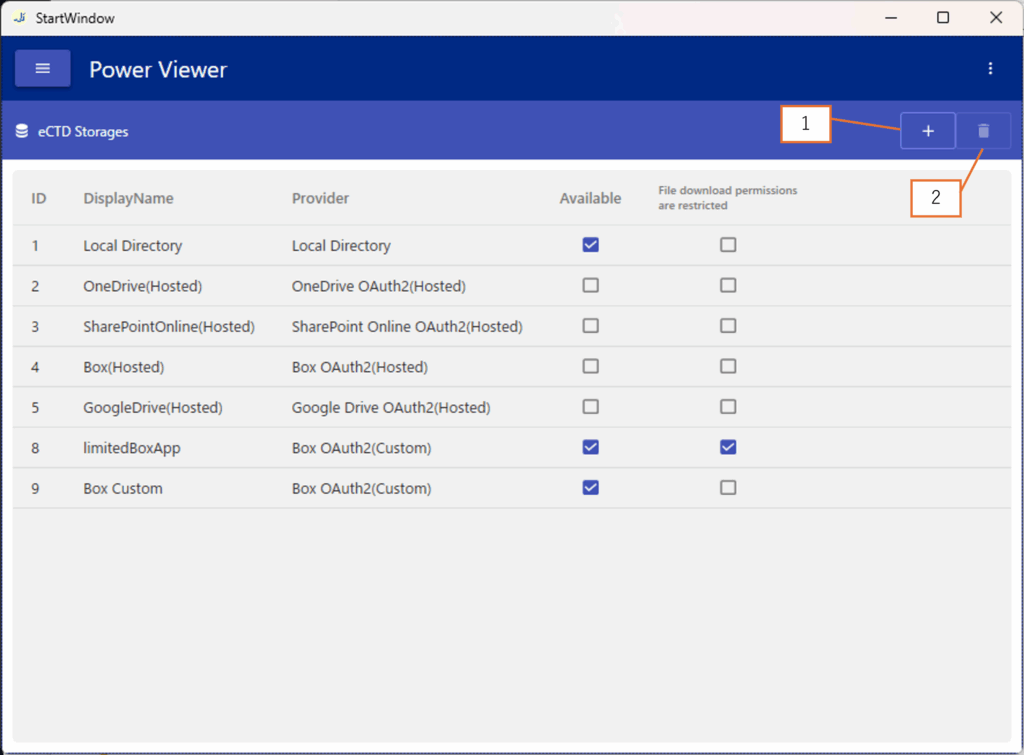
Screen layout
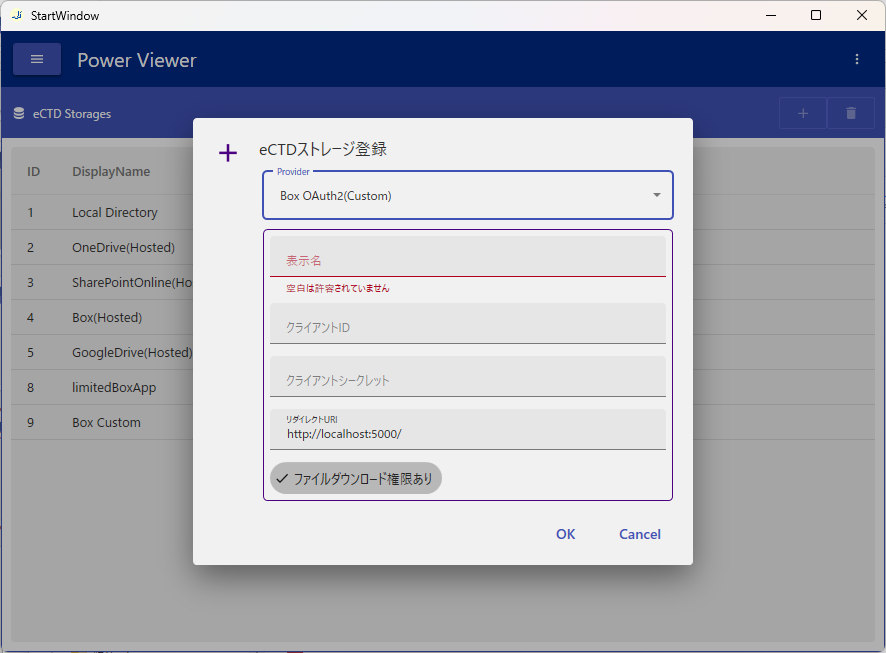
| No. | Description |
|---|---|
| 1 | Navigate to Screen 2 |
| 2 | Delete the selected eCTD Storage setting |
Add eCTD Storage configuration for SharePoint Online
When using SharePoint Online as an eCTD Storage, you need to configure an application (OAuth client) for storage access based on OAuth 2.0 / OpenID Connect. There are two configuration methods:
- Custom
- Delegated Custom
The difference between them is who owns and manages the OAuth client (API access application).
Custom
The Custom method uses an OAuth client owned by your organization.
Create an OAuth client in your tenant and use its information to configure the eCTD Storage.
Intended use cases
- You want to own and manage the OAuth client yourself
- Cannot grant Admin Consent to an app owned by an external vendor
Steps to add
- Administrator privileges on Entra ID are required
- What to create: OAuth 2.0 client
- For exact steps to create an OAuth client, treat the information on this page as reference only and consult the official documentation (https://learn.microsoft.com/ja-jp/azure/healthcare-apis/register-application)
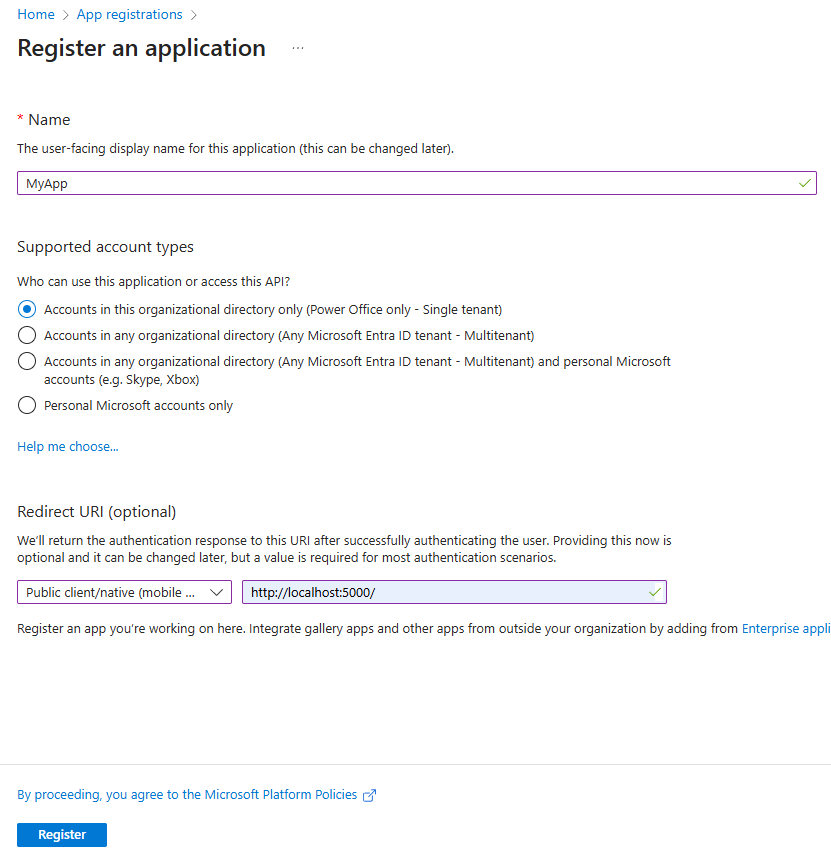
Enter the app name, supported account types, and redirect URI, then register the app.
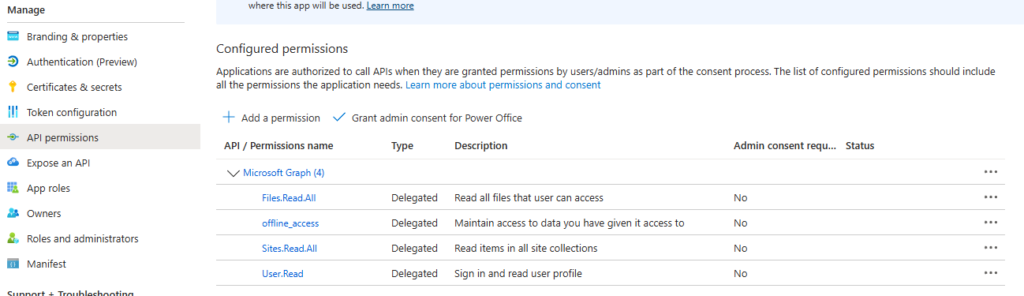
Add the following scopes.
- Files.Read.All
- Sites.Read.All
- User.Read
- offline_access
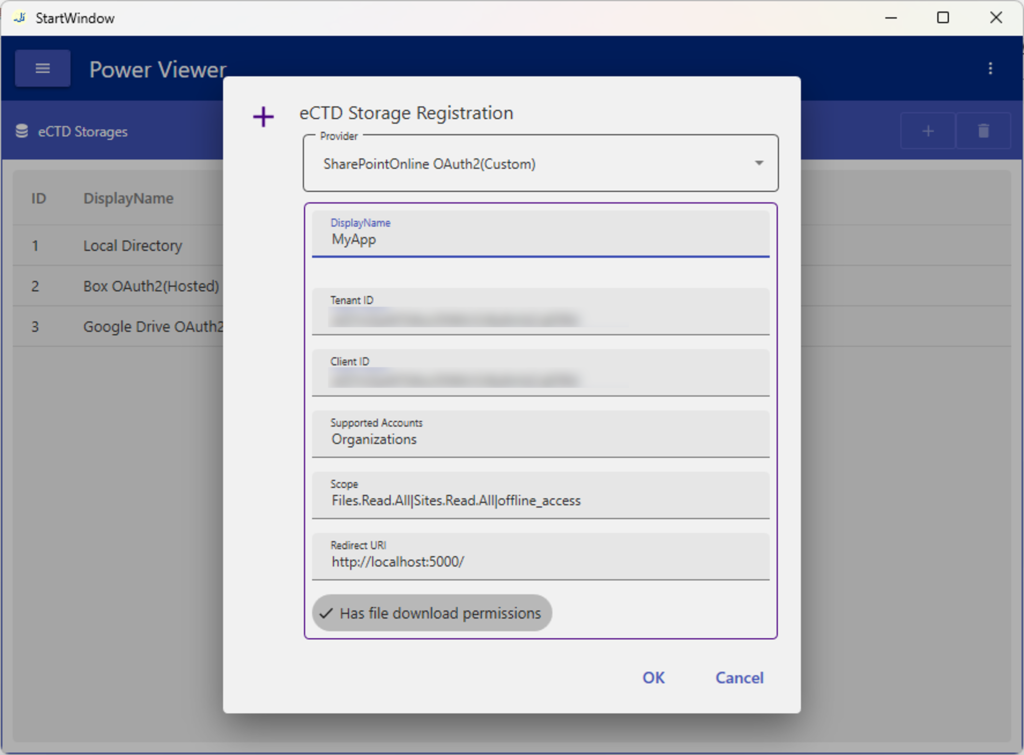
Obtain the tenant ID and client ID.

Delegated Custom
The Delegated Custom method registers an OAuth client created by Power Office into your tenant and uses it as a Custom configuration. It removes the burden of creating the OAuth client; functionally it is the same as the Custom method.
Intended use cases
- You want to avoid the effort of creating and managing an OAuth client in-house
- You can register an OAuth client owned by an external organization into your tenant
Steps to add
These preparations must be performed by the tenant administrator (typically an IT department staff member rather than the department manager using Power Viewer).
As preparation, grant consent for the Power Office–created OAuth client to access your tenant.
Click the admin consent link and sign in with an administrator account. The tenant administrator performs this once; it is not required each time you add an eCTD Storage setting.
Grant the PowerViewerSharePointOnlineOAuth2 application’s permissions to your tenant.

When adding, change only the display name and tenant ID; leave all other values at their defaults.
Add eCTD Storage configuration for Box
When using Box as an eCTD Storage, you need to configure an application (OAuth client) for storage access based on OAuth 2.0 / OpenID Connect. There are two configuration methods:
- Hosted
- Custom
The difference between them is the owner and manager of the OAuth client (API access application).
Hosted
Hosted applications are pre-created by Power Office and registered as initial values.
You do not need to add an eCTD Storage setting.
Intended use cases
- No special requirement to manage the authentication app in-house
- You can allow OAuth clients owned by external organizations
- It is difficult to provide the permissions required to register an app (Box administrator)
Custom
The Custom method uses an OAuth client owned by your organization.
Create an OAuth client in your tenant and use its information to configure the eCTD Storage.
Intended use cases
- You want to own and manage the OAuth client yourself
- Cannot grant Admin Consent to an app owned by an external vendor
Steps to add
- Box administrator privileges are required
- What to create: OAuth 2.0 client (Custom App)
- For exact steps to create an OAuth client, treat the information on this page as reference only and consult the official documentation (https://developer.box.com/)
| App name | Optional |
| Description | Optional |
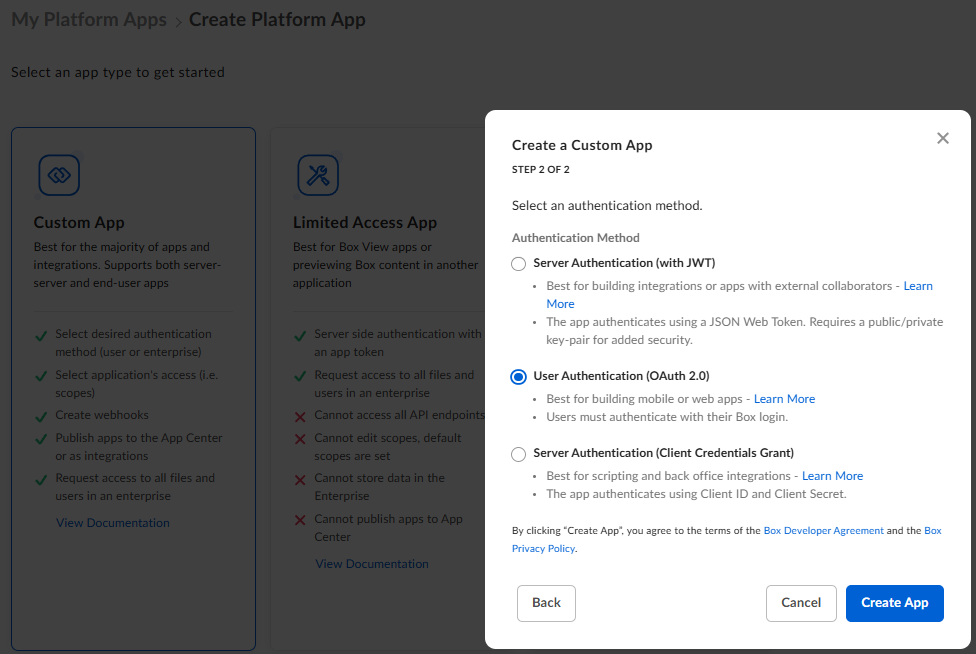
| Purpose | Integration |
| Category | Collaboration |
| External system to integrate | Power Viewer |
| App creator | Your organization |
| Authentication method | User authentication (OAuth2.0) |
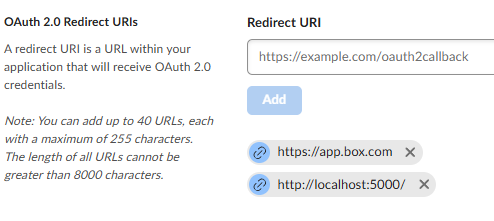
Specify any URI.
Check “Content operations > Write to all files and folders stored in Box”.
This setting is required to download file data (such as PDFs) from Box and display it in the Viewer. Power Viewer does not perform any write operations to Box resources.

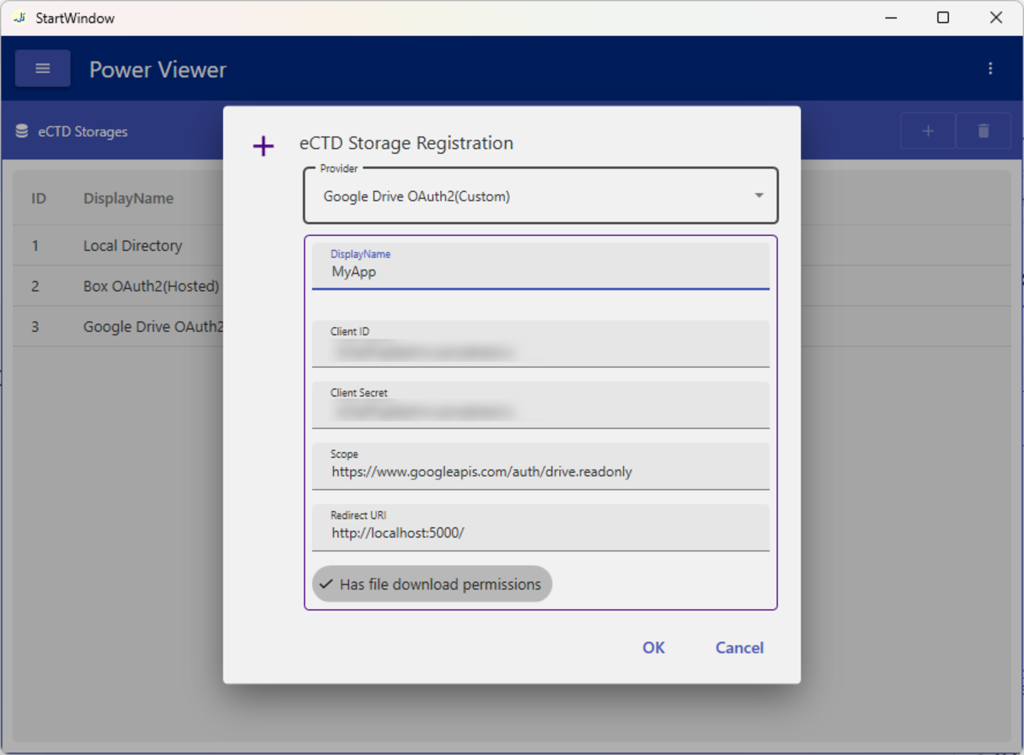
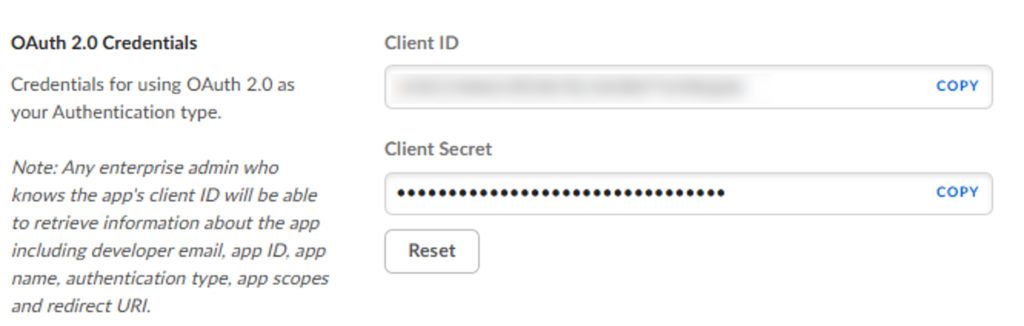
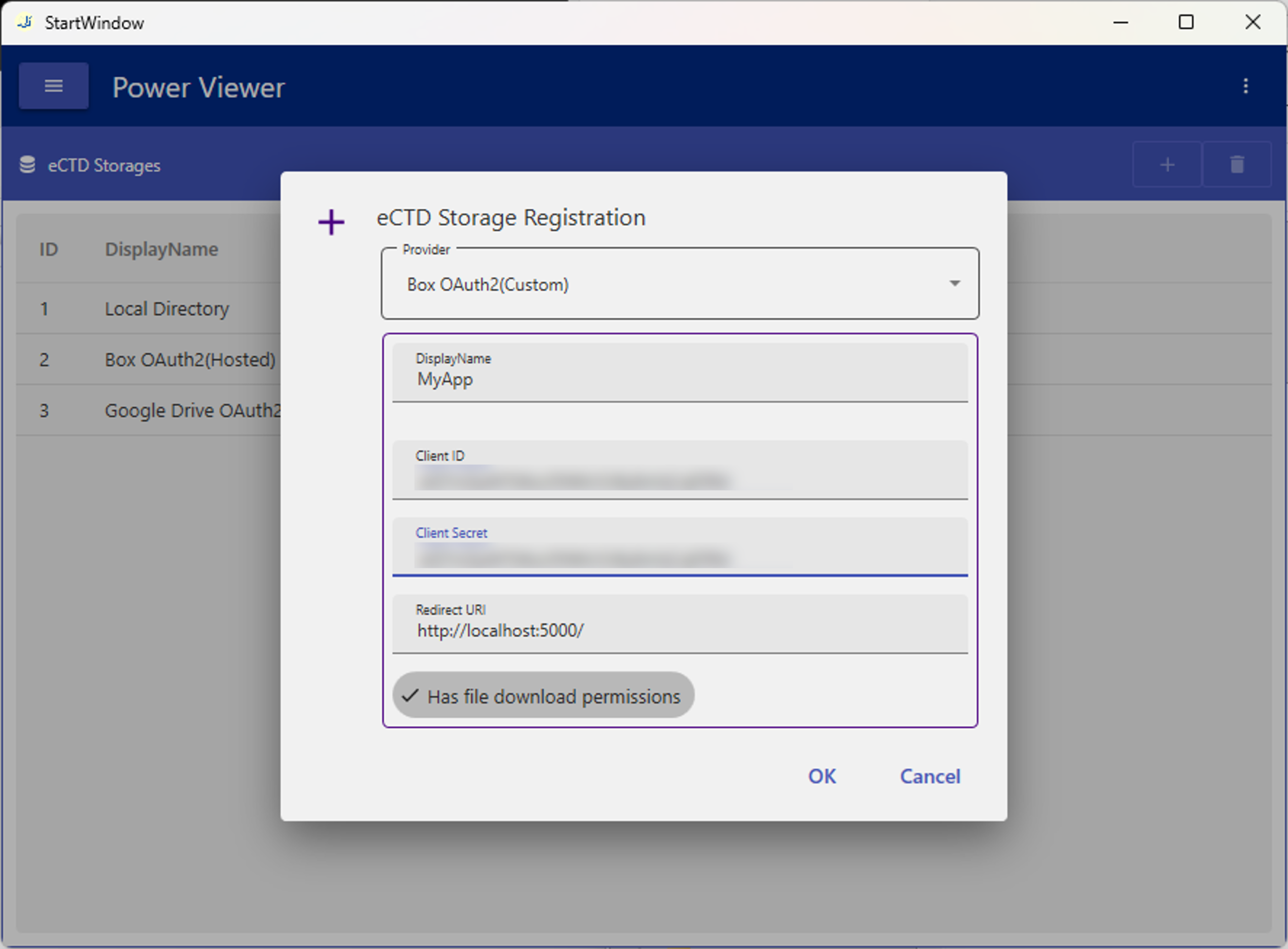
Obtain the client ID and client secret. Register this information in Power Viewer.
Add eCTD Storage configuration for Google Drive
When using Google Drive as an eCTD Storage, you need to configure an application (OAuth client) for storage access based on OAuth 2.0 / OpenID Connect.
For Google Drive, unlike other cloud storages, only Custom is available.
Custom
Steps to add
- Administrator privileges for Google Workspace are required
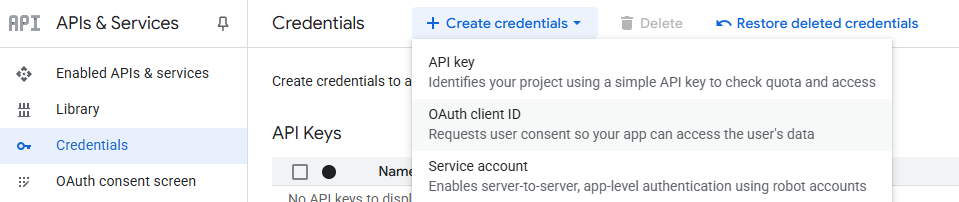
- What to create: OAuth 2.0 client
- For exact steps to create an OAuth client, treat the information on this page as reference only and consult the official documentation (https://console.cloud.google.com/)
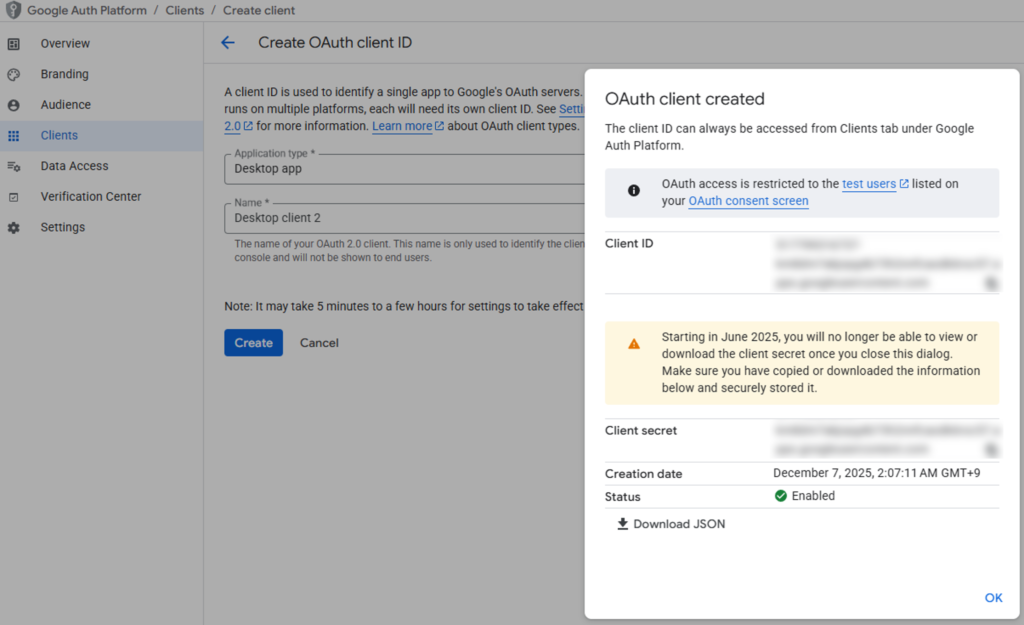
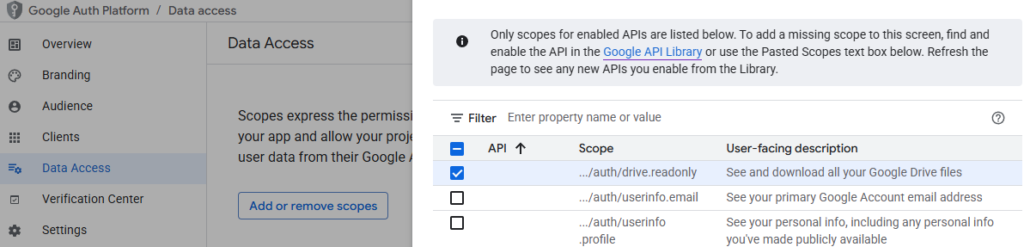
On the Data access tab, add the following scope.
…/auth/drive.readonly