
Overview
Manage Albums.
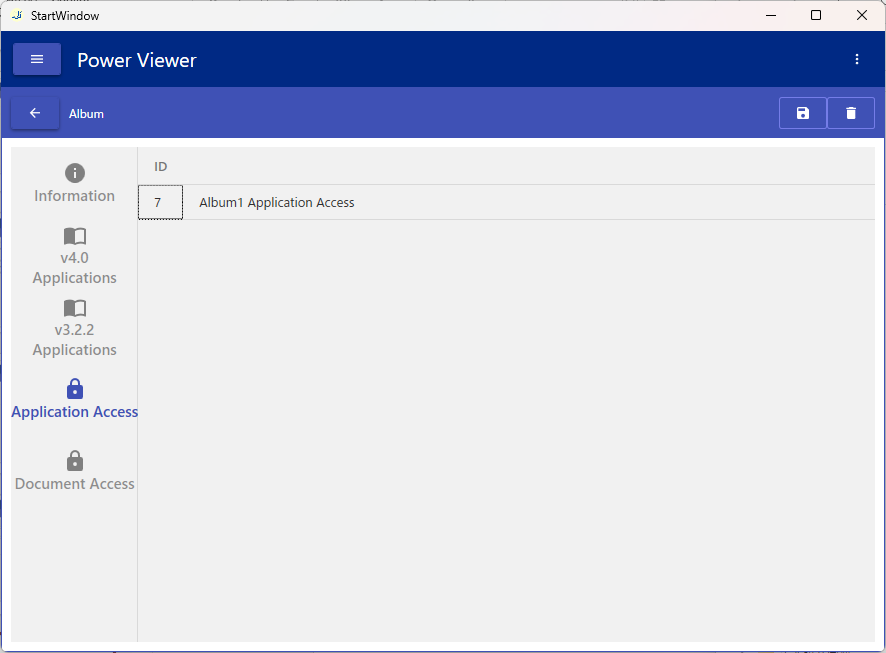
An Album contains Applications, an Application Access Key, and Document Access Keys.
The Application Access Key is automatically generated when the Album is created and cannot be changed.
The Application Access Key controls access to Applications. If you possess this key, you can access the Applications within the Album.
The available Applications on the “From Album” screen are determined by whether you have the corresponding Application Access Key.
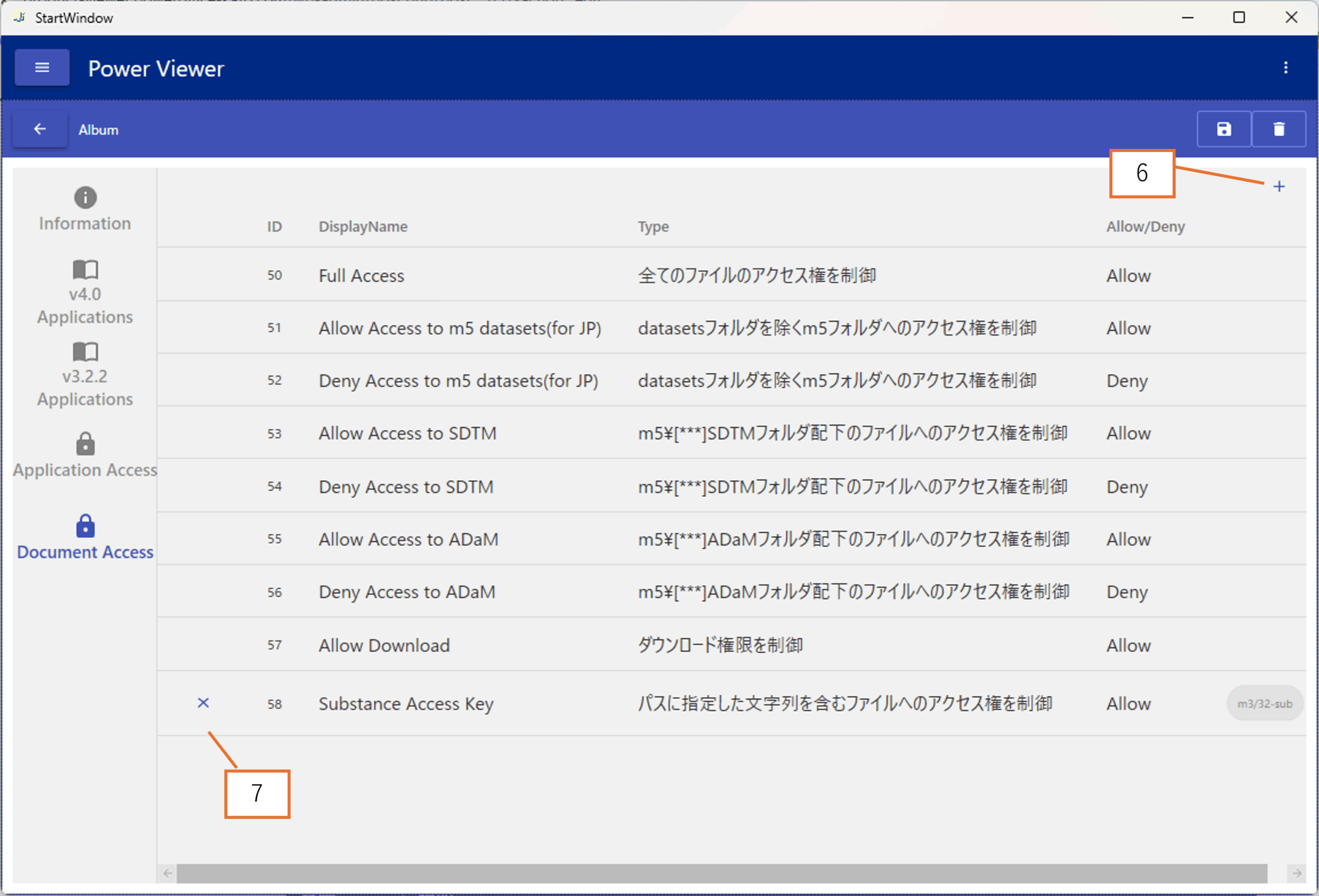
Document Access Keys control access to individual files. Even if you can access an Application, you cannot view specific files unless you also have the required Document Access Key.
When viewing an Application, whether you can load the file of a selected Node depends on the possession of the corresponding Document Access Key.
Screen Layout
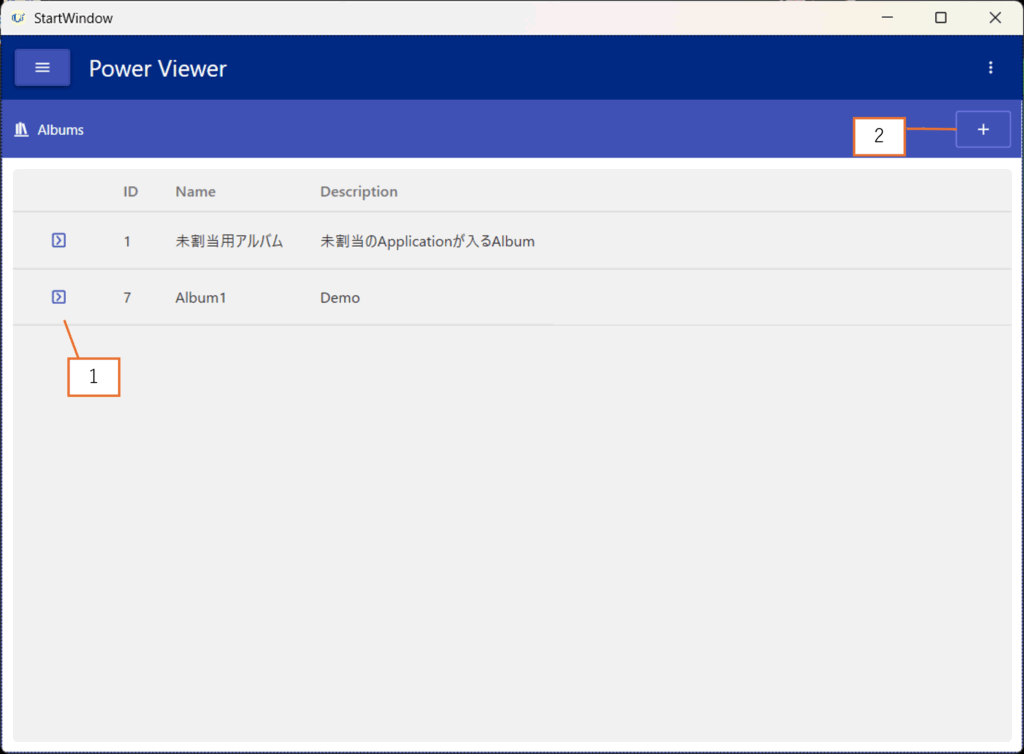
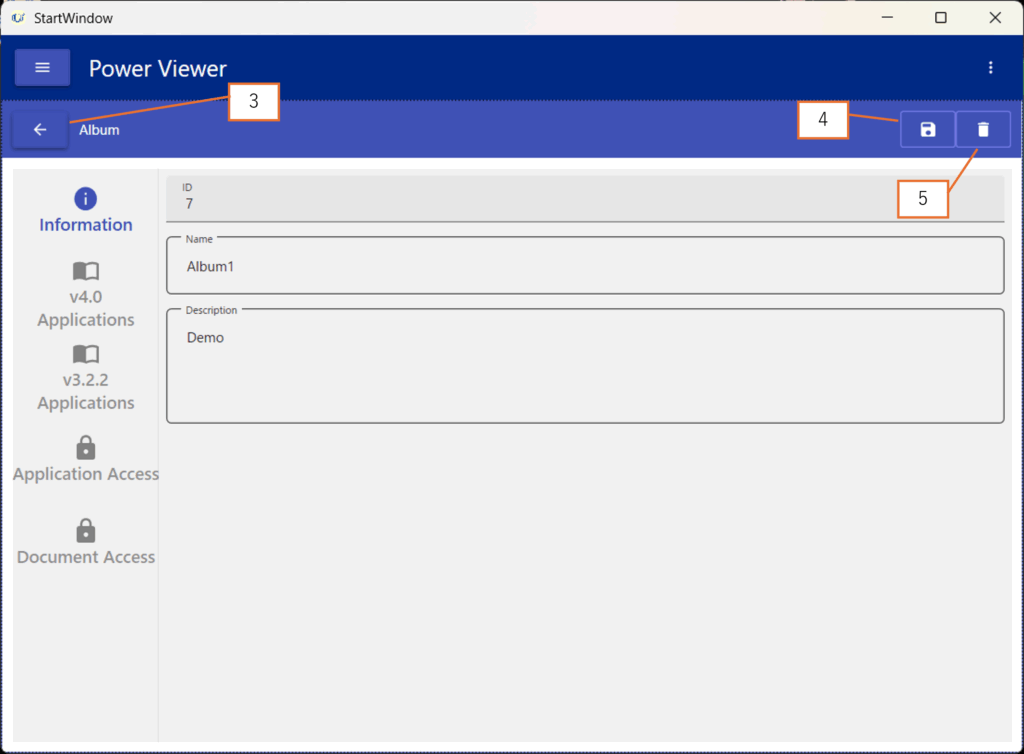
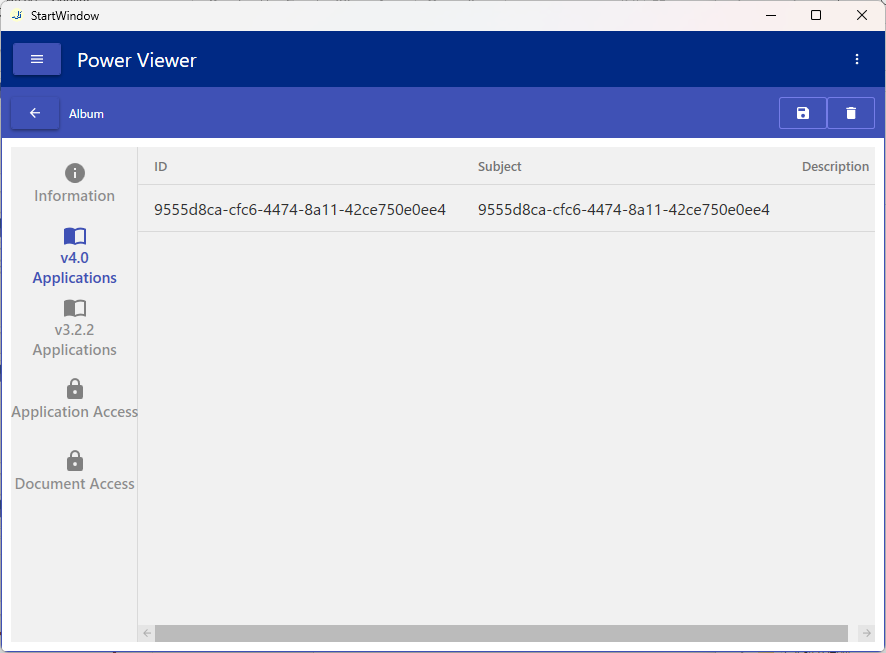
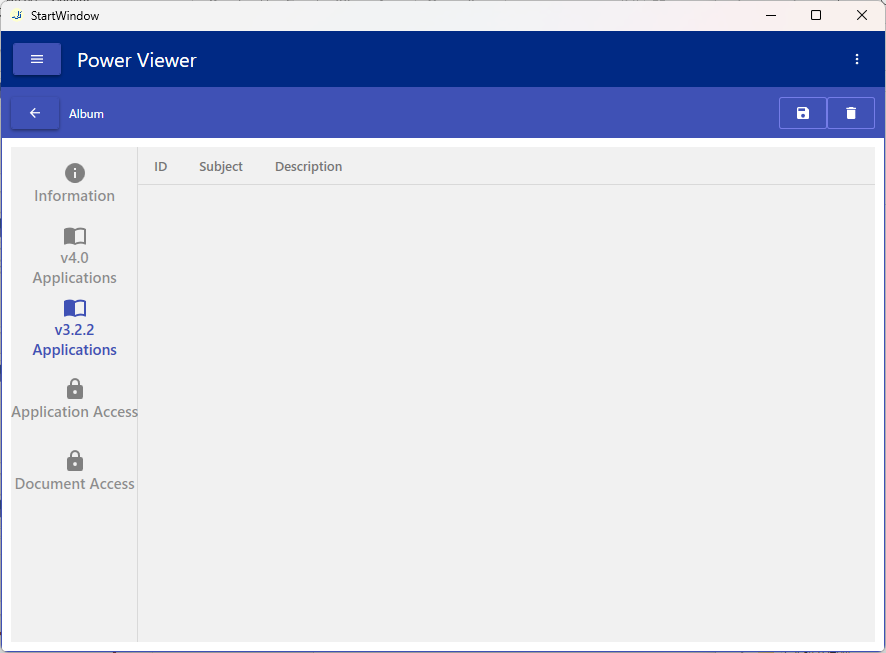
| No. | Description |
|---|---|
| 1 | Navigate to Screen 2 |
| 2 | Navigate to Screen 4 |
| 3 | Navigate to Screen 1 |
| 4 | Save changes |
| 5 | Delete Album |
| 6 | Add a DocumentAccessKey (go to Screen 3) |
| 7 | Delete a DocumentAccessKey |
Operations
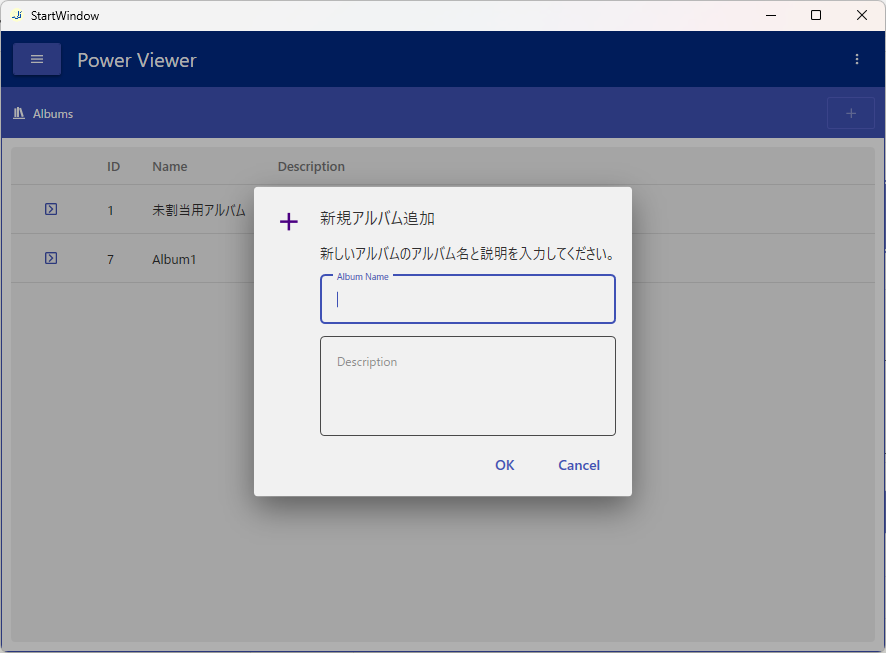
Add an Album
Enter the album name and description on Screen 4.
View and Edit Album Information
View and edit Album information.
The album name, description, and DocumentAccessKeys can be edited on Screen 2. Press the Save button (4) to confirm the changes.
Add a DocumentAccessKey
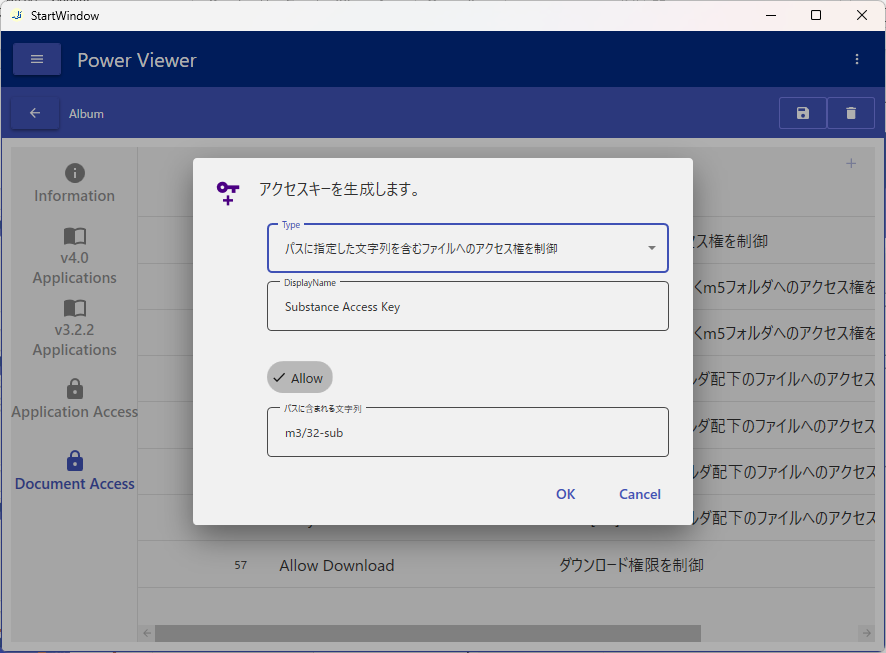
Add a DocumentAccessKey on Screen 3.
Specify the Type, DisplayName, Allow/Deny, and setting string.
| Description | Example | |
|---|---|---|
| Type | Select the type of key. | Control access to files containing a specified string in the path |
| DisplayName | Set a display name. | Deny access to Substance data |
| Allow/Deny | Specify whether the key grants or denies access. | Deny |
| Setting String | Enter a string whose meaning depends on the selected Type. To specify multiple values, use | (pipe) as a separator. | m3/32-sub |
Delete an Album
Click the Delete button (5) to remove the Album.