
Conceptual Diagram
Access to the AlbumDatabase is controlled by Album, Application Access Key, Document Access Key, UserGroup, and UserAccount.
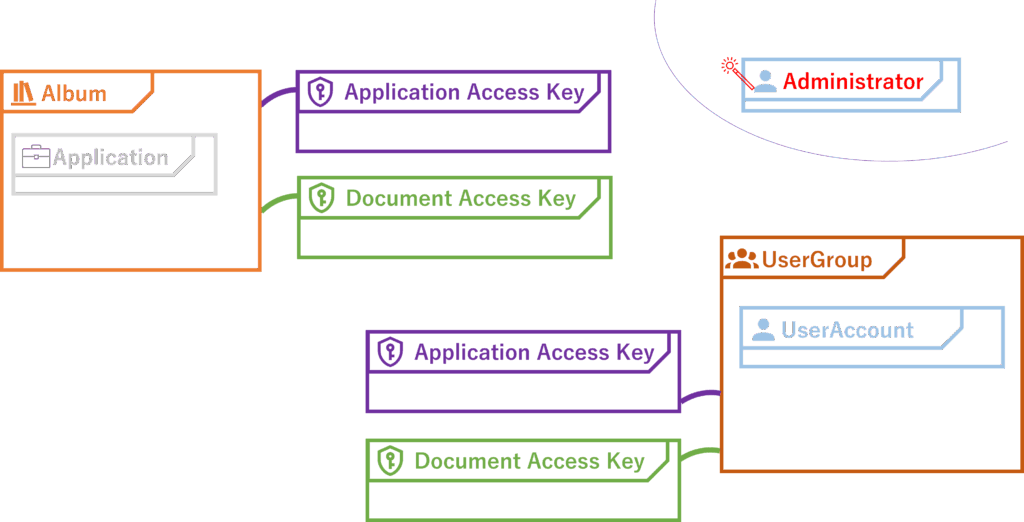
UserAccount Has a Role
Each UserAccount has a Role. The Role is set at the time of UserAccount creation and cannot be changed later.
| Role | Description |
|---|---|
| Administrator | A user with permission to perform all operations in Power Viewer |
| GroupPolicy Editor | A Viewer who can edit GroupPolicy |
| Viewer | A general user without editing rights for the AlbumDatabase Can only edit their own UserAccount DisplayName and password |
Administrator
Administrators can perform any operation in Power Viewer. They do not need to consider AccessKeys or UserGroups. Simply being an Administrator grants unrestricted access to all functions.
GroupPolicy Editor
GroupPolicy Editors have the same permissions as Viewers, except they can also edit GroupPolicy.
UserAccount Can Join Multiple UserGroups
A UserAccount can join one or more UserGroups.
The UserGroups you belong to can be checked in MyAccount.
UserGroup Has AccessKeys
A UserGroup can hold any number of AccessKeys.
When a UserGroup has AccessKeys, all UserAccounts belonging to that UserGroup are treated as having the same AccessKeys. Once a UserAccount leaves the UserGroup, the AccessKeys are revoked.
The AccessKeys you currently hold (inherited from UserGroups) can be checked in MyAccount.
Album Has Two Types of Access Keys
When an Album is created, one Application Access Key and multiple Document Access Keys are generated and linked to that Album.
Each Album has exactly one Application Access Key. It cannot be added or removed.
An Album can have multiple Document Access Keys. In addition to automatically generated Keys, you can create and add your own Keys. User-created Keys can also be deleted.
Users With Matching AccessKeys Can Access Album Resources
When a user attempts to access an Application or Document, their AccessKeys determine whether access is granted.
Although AccessKeys for UserGroups and Albums share the same name, conceptually it is easier to think of the UserGroup holding the key, while the Album holds the keyhole.
Application Access Key
The Application Access Key controls access to Applications.
If you hold the Application Access Key of the corresponding Album, you can access all Applications within that Album.
Document Access Key
A Document Access Key consists of Type, DisplayName, Allow/Deny, and a configuration string.
| Description | Example | |
|---|---|---|
| Type | Select the type of Key. | Controls access to files containing the specified string in the path |
| DisplayName | Set a display name. | Deny access to Substance data |
| Allow/Deny | Specify whether the Key grants or denies access. | Deny |
| Configuration String | A string whose meaning depends on the Type. To specify multiple values, use the | (pipe) character as a separator. | m3/32-sub |
Special UserGroups
Normally, UserAccounts join UserGroups manually. A UserAccount cannot join a UserGroup without being explicitly added, and Trial users logging in without a UserAccount cannot join any UserGroup.
However, there are two exceptions:
| UserGroup ID | UserGroup Name | Overview | Condition | Registered Users | Trial Users |
|---|---|---|---|---|---|
| 1 | All Users | A UserGroup that includes all logged-in users | None | ||
| 2 | All Registered Users | A UserGroup that includes all users who have completed registration | Must be a registered user |
All User and All Registered User are special UserGroups that do not accept manual UserAccount membership. Instead, users are automatically included based on the above conditions.
Despite their special rules, these two UserGroups are still UserGroups and can hold AccessKeys just like any other UserGroup.
In other words, by assigning AccessKeys to All User or All Registered User, you can make Albums accessible without requiring manual UserGroup membership.