
TOC
Overview
Manage user accounts.
In principle, user accounts are created automatically. When a new user attempts to log in to Power Viewer, an account is automatically created for that user and the Guest role is assigned.
We recommend having each employee log in once, and then having the Administrator change their role accordingly.
Screen Layout
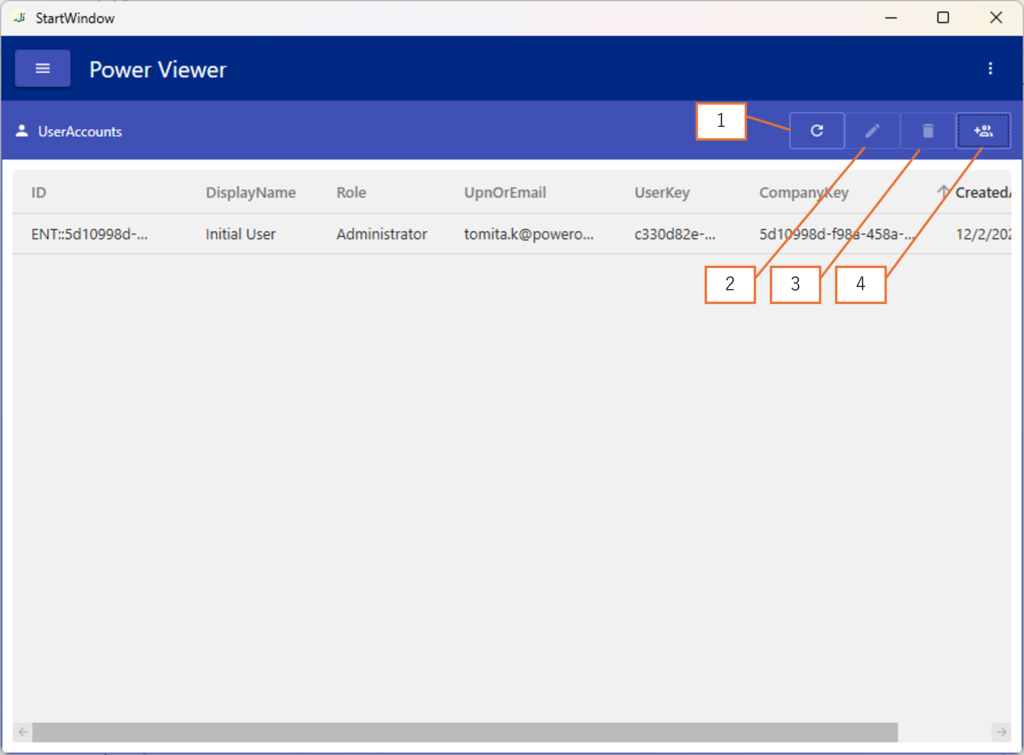
| Number | Description |
|---|---|
| 1 | Refresh the list |
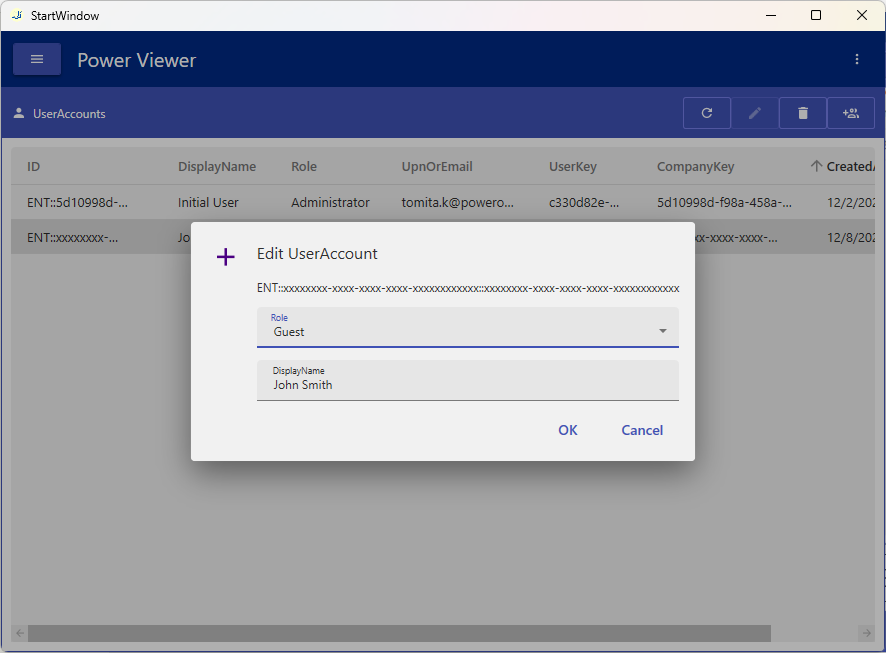
| 2 | Open a dialog to edit the selected user account (Screen 2) |
| 3 | Delete the selected user account |
| 4 | Bulk add user accounts |
Edit User Accounts
In Screen 2, you can edit the role and display name.
Bulk Add User Accounts
STEP
Export CSV Template
Click Button 4 > Template.
STEP
Enter Information in CSV
Enter rows for the number of users you want to add.
| Column | Description | Example |
|---|---|---|
| login_method | Specify the login method as a numeric value. Entra: 1 AD: 2 Cred: 3 | 1 |
| company_key | Specify the company key. | xxxxxxxx-xxxx-xxxx-xxxx-xxxxxxxxxxxx |
| user_key | Specify the user key. | yyyyyyyy-yyyy-yyyy-yyyy-yyyyyyyyyyyy |
| role | Specify the role as a numeric value. Viewer: 0 Administrator: 1 GroupPolicy Editor: 2 Guest: 9 | 9 |
| displayname | Specify the user’s display name. | Taro Tanaka |
| cred_password | If Cred is selected as the login method, specify the password. If other login methods are used, this value is ignored even if specified. | Password123 |
STEP
Import CSV
Click Button 4 > Import.
Delete User Accounts
With a user account selected, click Button 3 to delete it.
An Administrator can delete other Administrators, but cannot delete themselves.