
Overview
Manage SubmissionUnits.
In Power Viewer, both v4.0 and v3.2.2 use SubmissionUnit as the concept corresponding to submissionunit.xml or index.xml.
SubmissionUnit is the most important element in eCTD registration.
Screen Layout
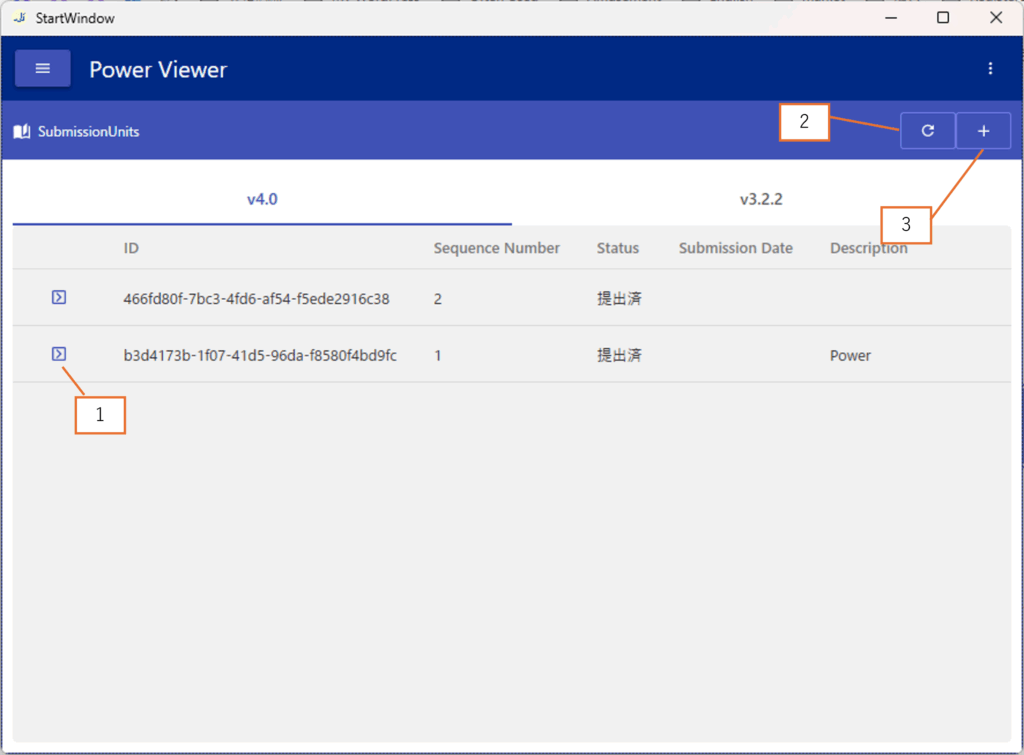
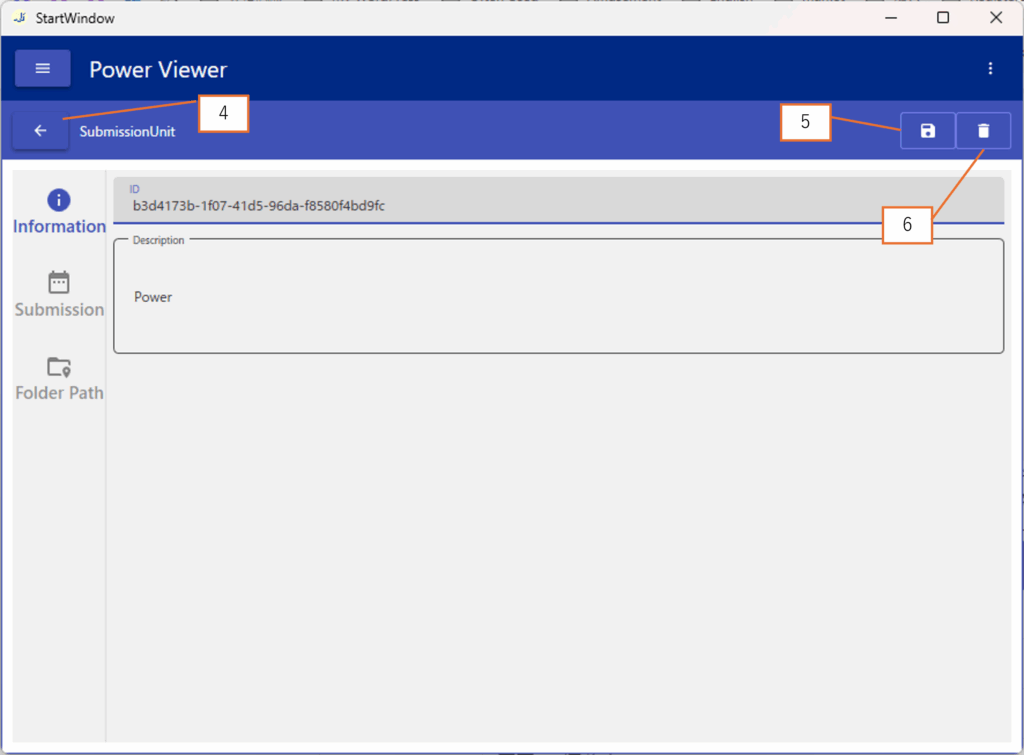
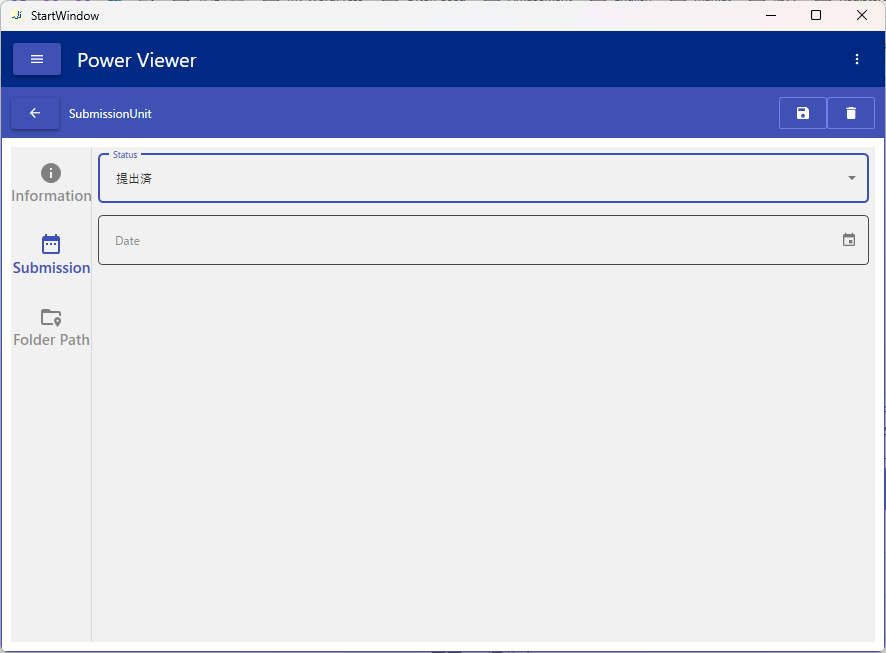
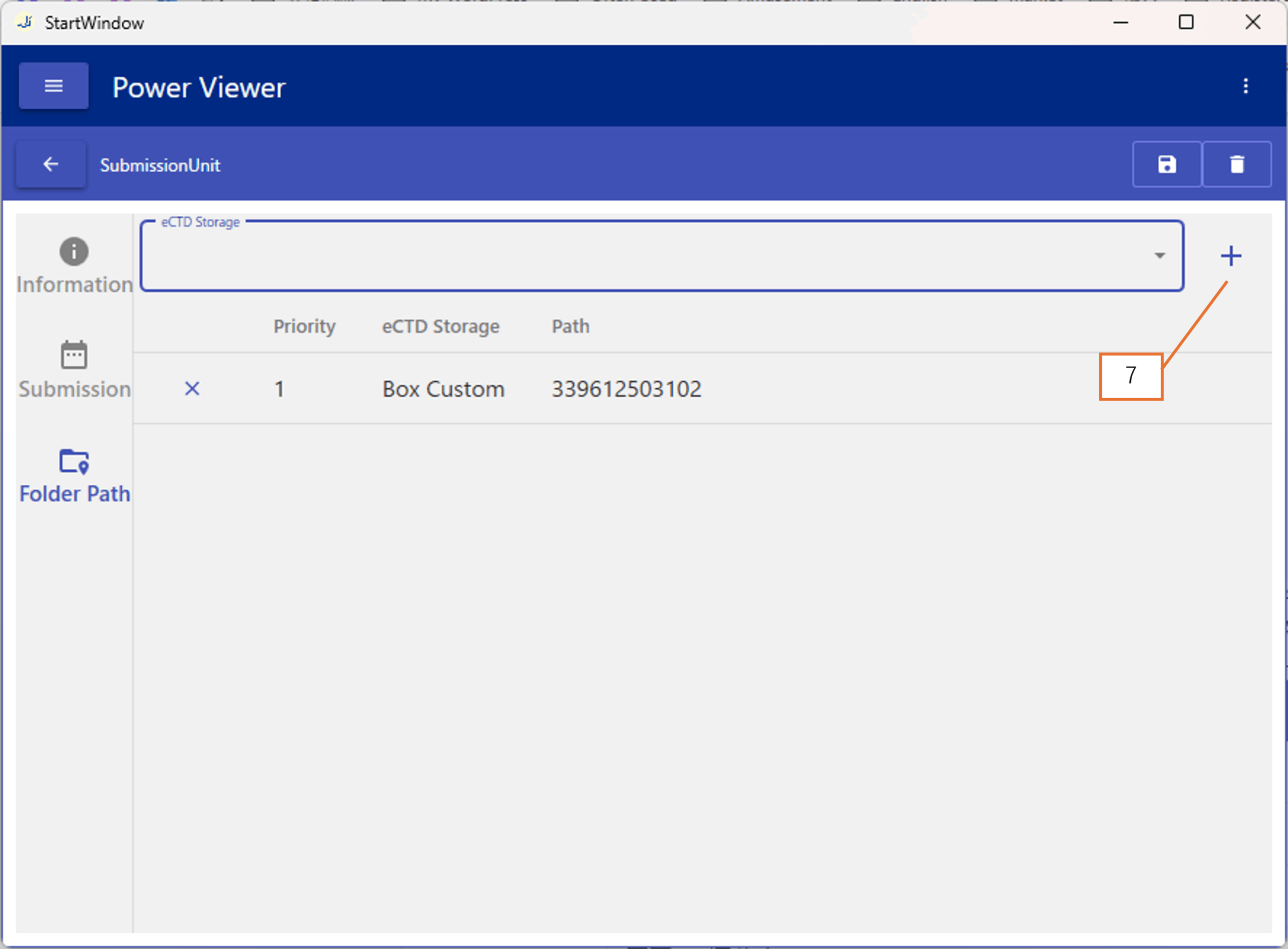
| No. | Description |
|---|---|
| 1 | Go to Screen 2 |
| 2 | Refresh the view of Screen 1 |
| 3 | Open the SubmissionUnit Add dialog (Screen 3) |
| 4 | Go to Screen 1 |
| 5 | Save changes on Screen 2 |
| 6 | Delete a SubmissionUnit |
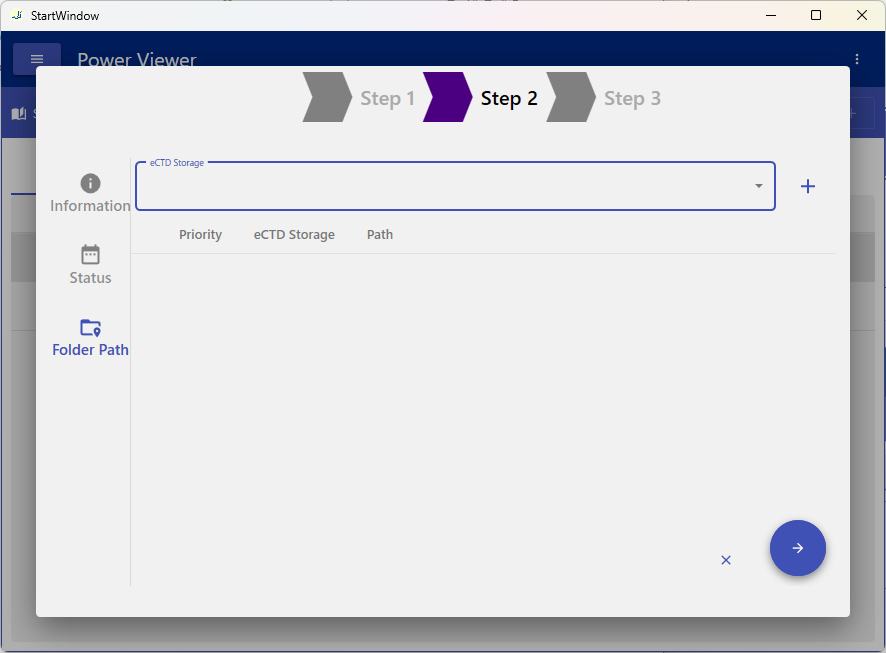
| 7 | Add a Folder Path |
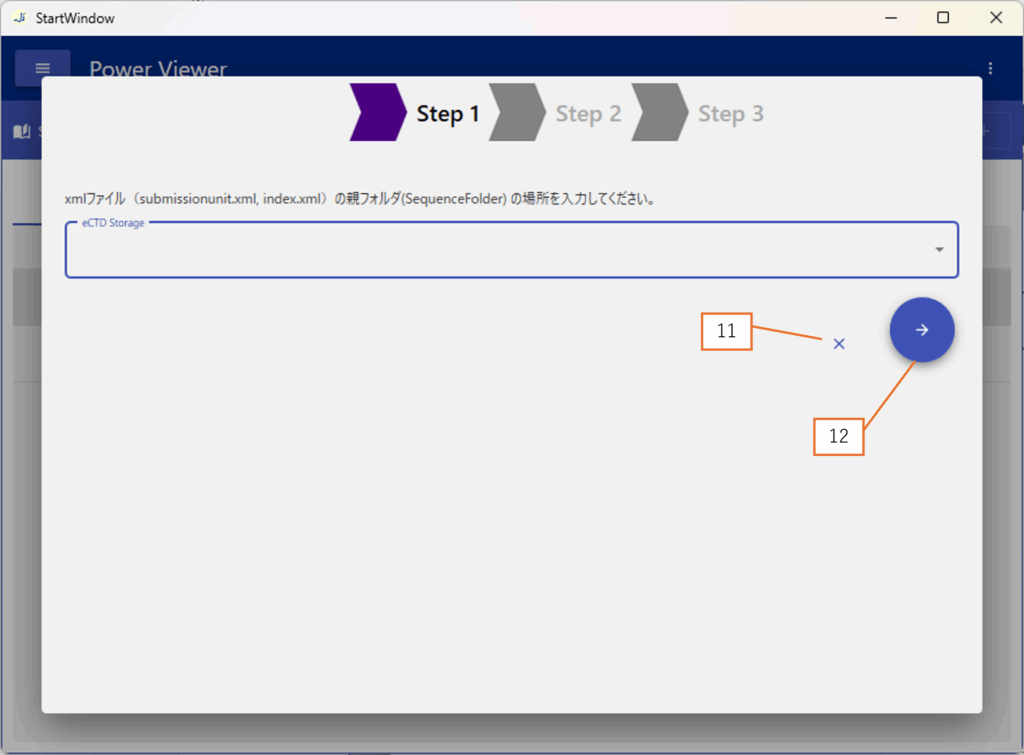
| 11 | Close Screen 3 |
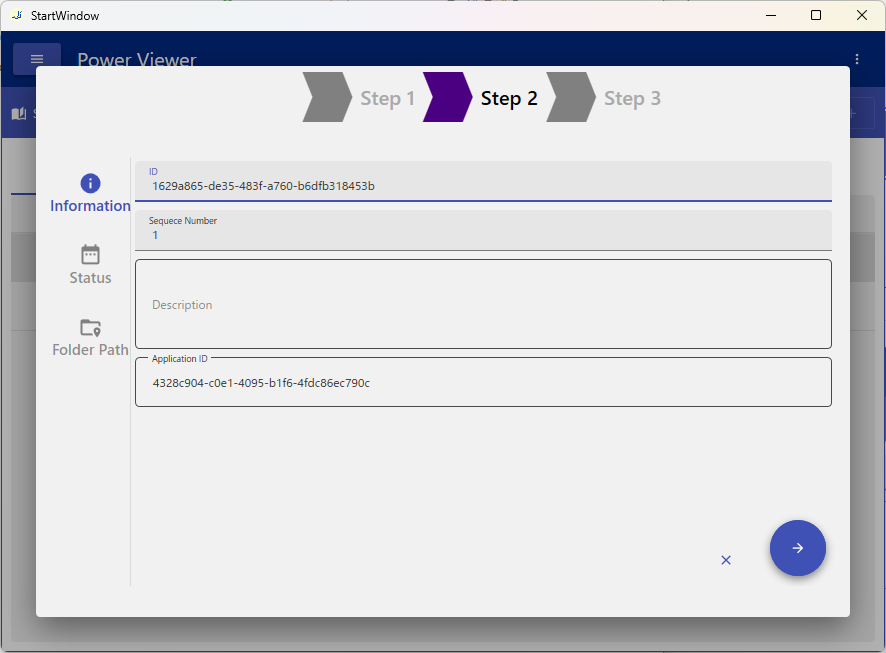
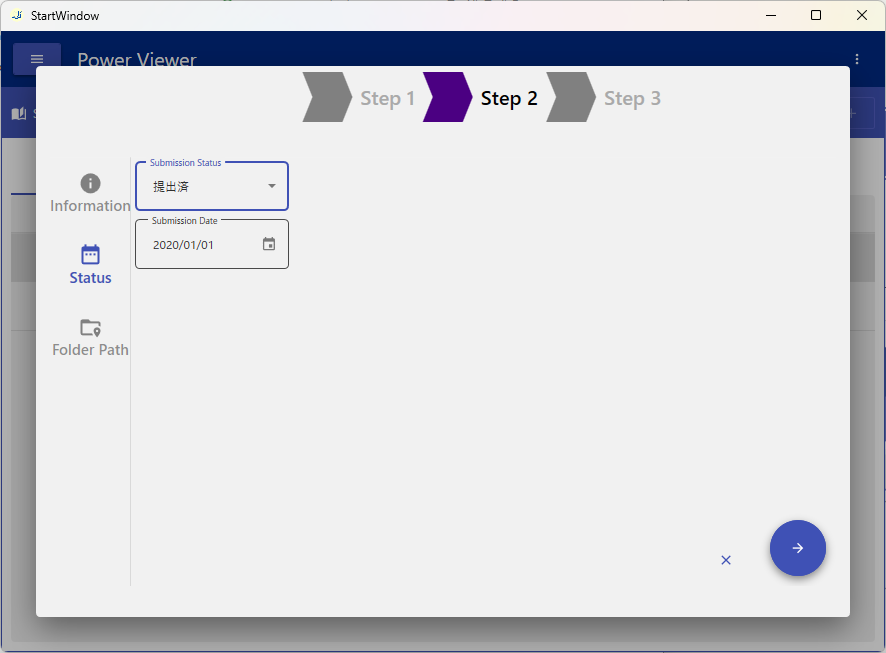
| 12 | Proceed to the next Step |
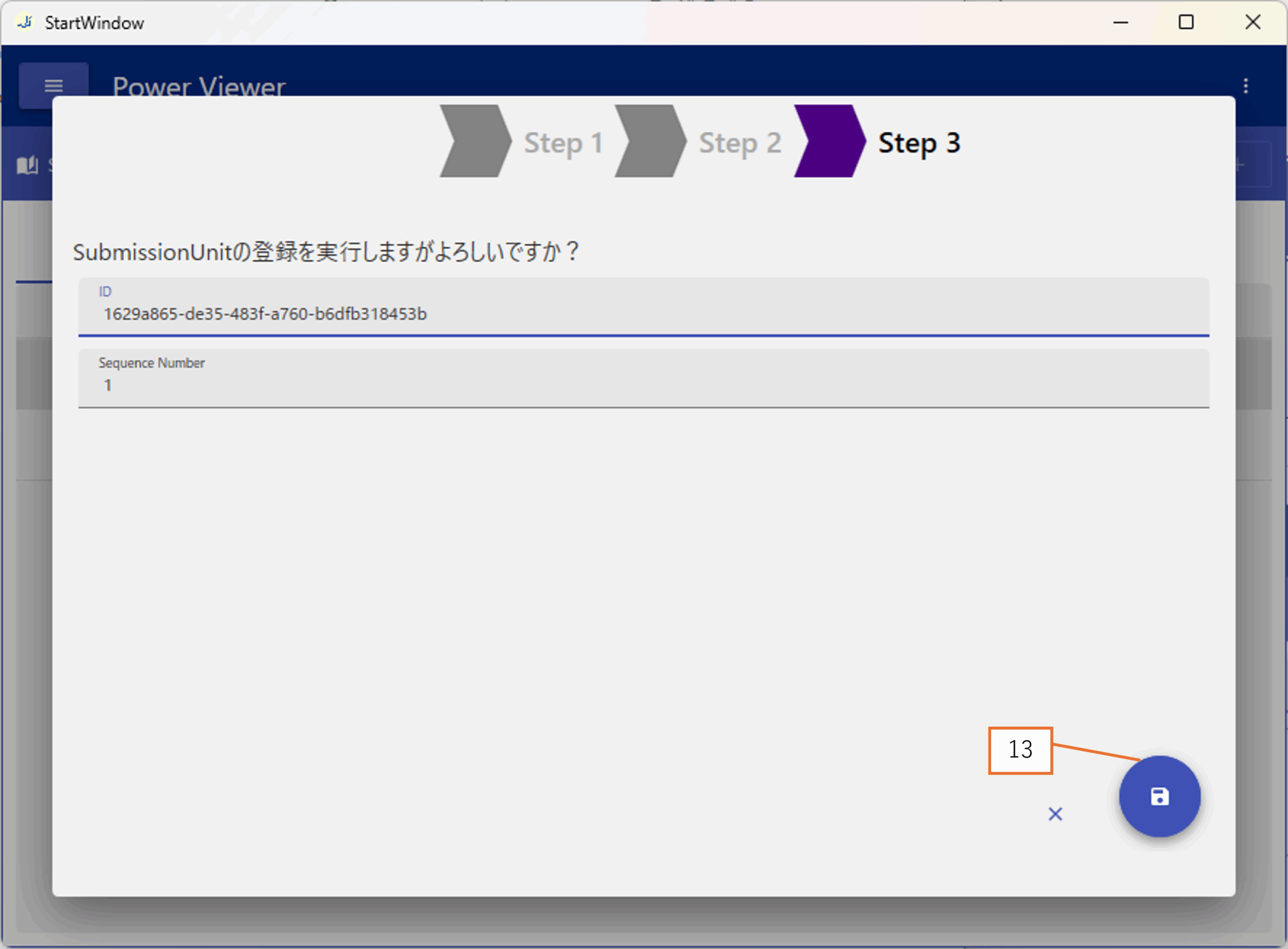
| 13 | Execute SubmissionUnit registration |
Operations
Add a SubmissionUnit
Click button 3 and follow the flow in Screen 3.
For cloud storage, specify the folder ID or similar information.
Click button 12 to proceed to Step 2.
For cloud storage, login authentication will take place at this step.
Click button 13 to register the SubmissionUnit to the album database.
No changes will be made to the album database until button 13 is clicked.
Delete a SubmissionUnit
Click button 6 to delete the SubmissionUnit.
Add a Folder Path
You can register multiple folder paths for a SubmissionUnit.
When viewing an eCTD, Power Viewer will check the registered Folder Paths in order of priority and use the first valid one.
Save Changes
Click button 5 to save changes made on Screen 2.